
There are times to develop a system from scratch, and there are times to use Saas platforms.
“In a perfect world, we’d write all sorts of custom integrations for all the client systems that we build. Do we have the know-how to code what Zapier does? Absolutely. Do we have the time to build and maintain it? Absolutely not. So we Zap it and move on.”
Stephanie Plumeri
In many a Software Engineers journey, there has come a time when you are the sole developer in a project that is not allocated the required time or budget to custom develop. Whether that be from a client or from the company you work at.
Thankfully Zapier a SaaS automation tool can help you with that.
This is how I built an API Integration between Salesforce and Ed-Admin a School Information System
Salesforce Setup v1 – If At First You Don’t Succeed
My first attempt at this resulted in failure. I tried to set up Zapier to find any changes in records and then run a number of processes.
This looked like this:
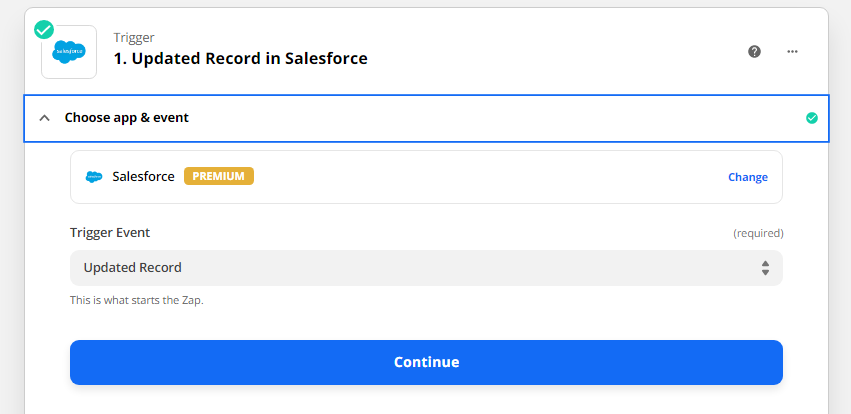
The problem with this approach is that so many changes occur on active Salesforce records that it would completely overwhelm this Zap with triggers.
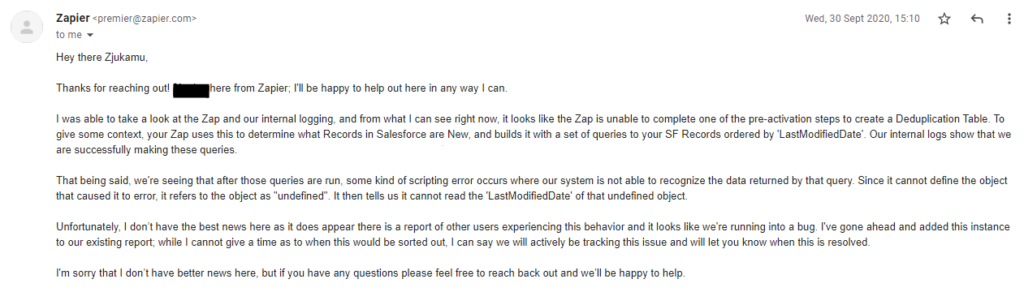
After reaching out to Zapier, I got a more sophisticated explanation explaining how Zapier runs this trigger and that it would not work with the design I had in mind.
Salesforce Setup v2 – A Smarter Approach
At this point, I had to go back to the drawing board. The first iteration was querying from a pool of changes that were too big for it to handle. How can I make more efficient queries? or push only what needs to be processed to Zapier. After digging into all the Salesforce features I found the answer in Outbound Messages.
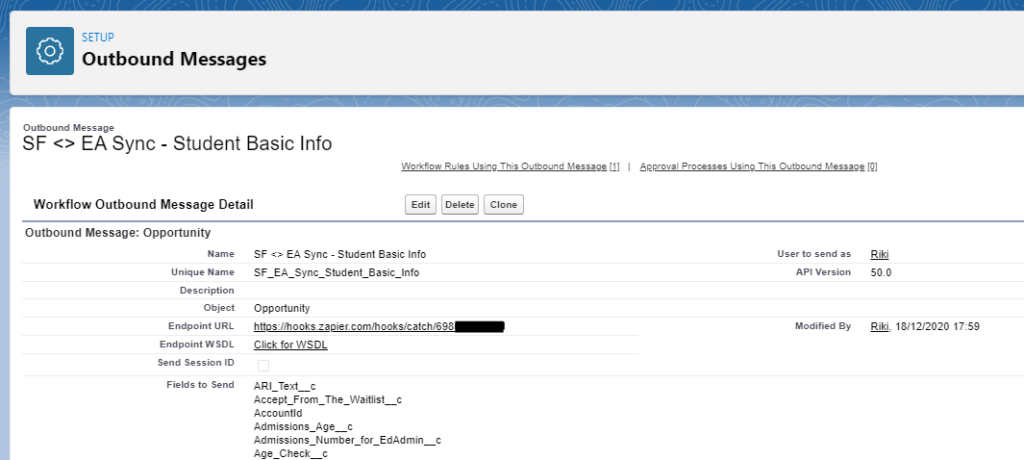
Outbound Messages are SOAP transactions that Salesforce automatically sends to external systems when triggered.
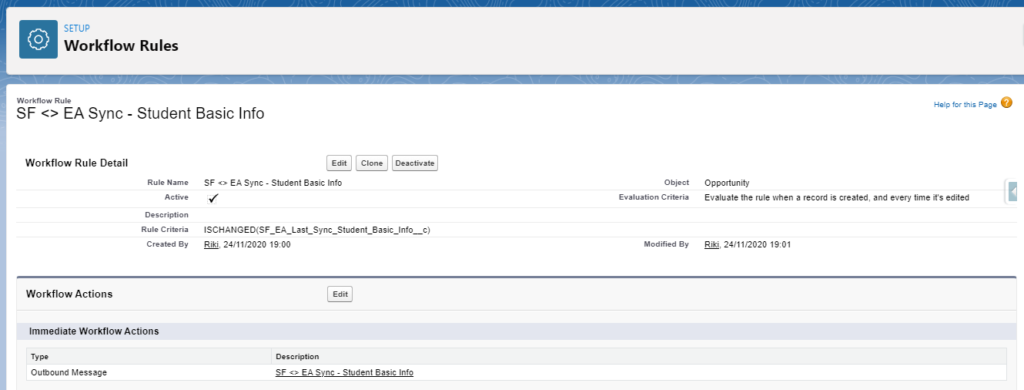
So all I had to do was create a Workflow Rule (This is a Salesforce trigger) to send the Salesforce record data to a defined endpoint provided by Zapier. (I’ll cover where to get that endpoint later on)
To correct from the previous design, this trigger would have to be more intentional and not trigger from any change on the record.
To do this I created an additional field and set the Workflow Rule to only trigger the Outbound Message to be sent when changes are made to that one field.
Great! I can now send data to Zapier in a smart and intentional way. But will the users be comfortable with making a change on a field every time they want to send data over to another system? I had to make this more user-friendly.
In Comes Butttons
To make this easier to use, I created a button that when clicked updated the trigger field with the current time. This would ensure that the value is always new and that the trigger would fire.
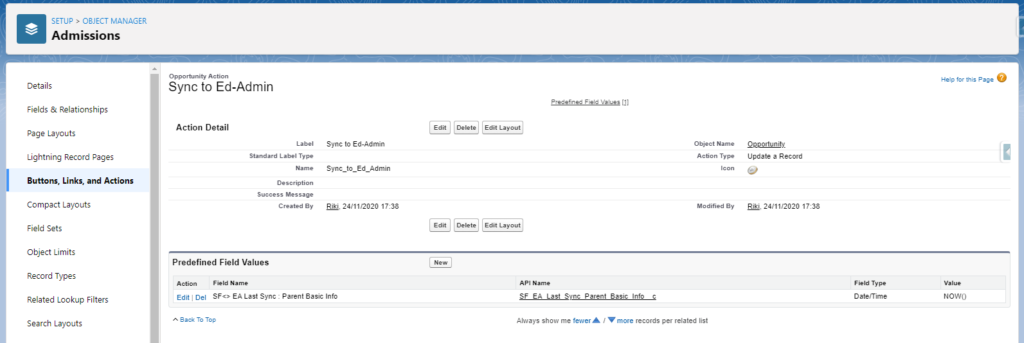
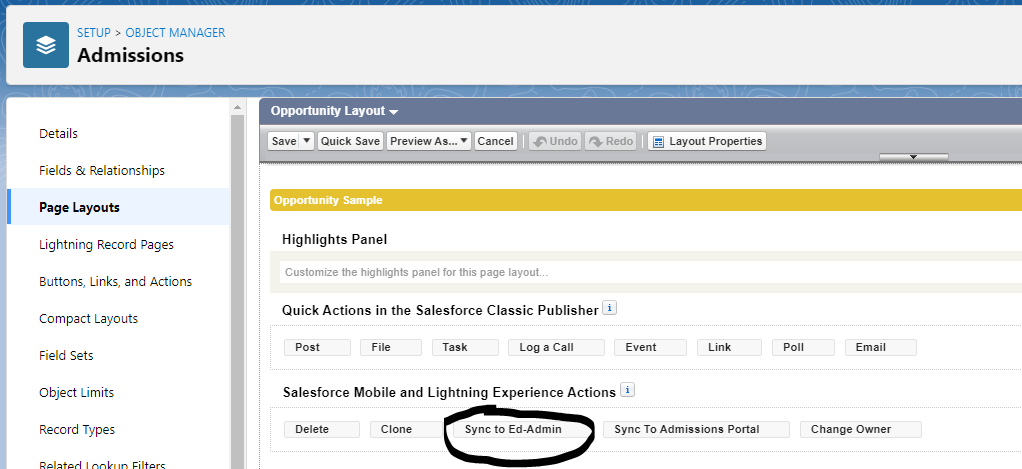
I then set the button to appear on the top of the record via Page Layout in the Salesforce Mobile and Lightning Experience Actions section.
When the button is clicked it prompts the user to update the trigger field with the current date and time by clicking the Save button.
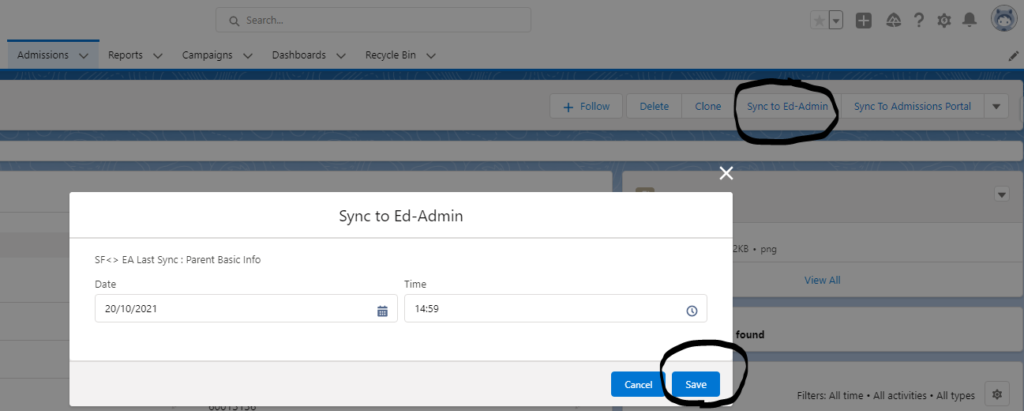
And voila! You now have a smart and efficient way for your users to trigger the first half of the integration on their own.
P.S To further improve on this you would adjust this trigger to fire when a certain stage is reached in the pipeline of the record
Zapier Setup
The Zapier setup is probably the easiest part of this. You need to create a Zap with the first step being a Webhook by Zapier action.
You would then set the Trigger Event to be Catch Hook.
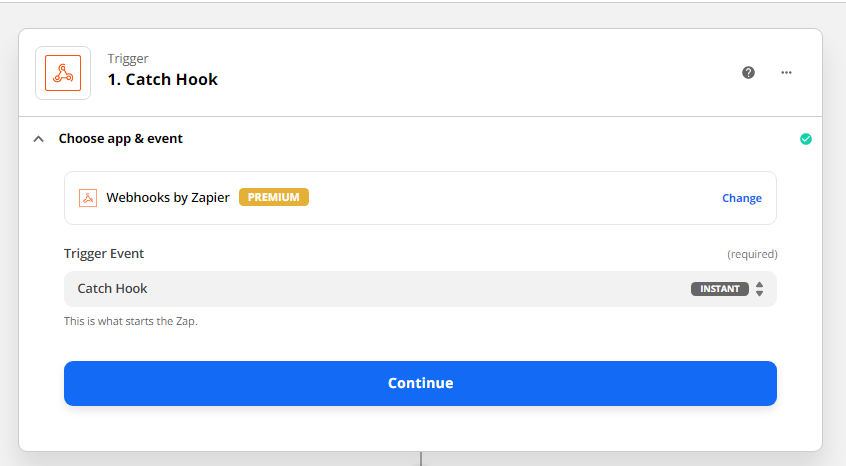
When you click continue you will be provided with a custom webhook URL unique to this Zap. This is what you will fill in as an Endpoint URL in the Salesforce Outbound Message.
How To Send Data To The Receiving App, Ed-Admin.
So far you have managed to send data to Zapier. Depending on your needs you can manipulate the data, add filters and paths to fit into the business logic defined in the project. After that, you need to send the data to the receiving app. In this example, I will send data to Ed-Admin a School Information System that does not have a listed Zapier App. To do this, I will once again use Webhooks by Zapier. Only this time the Action Event will be POST.
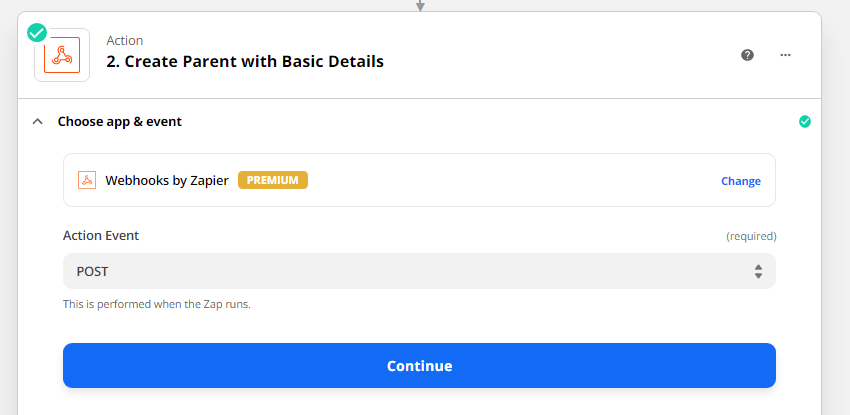
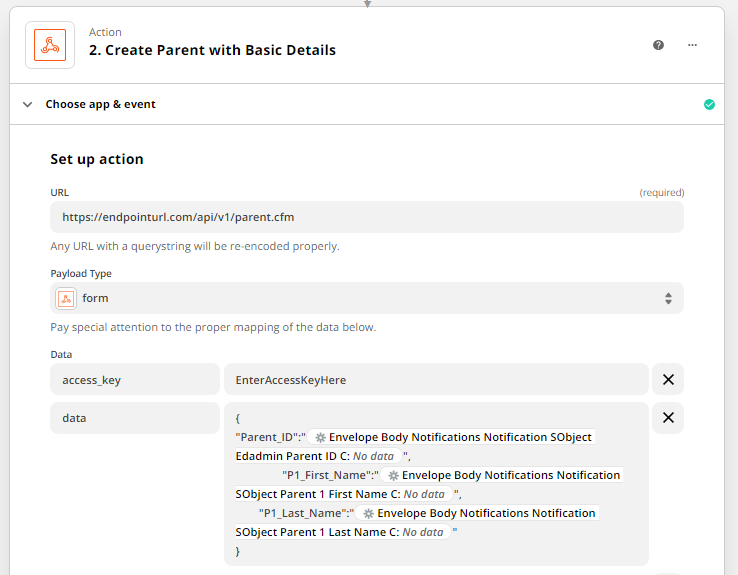
Fill in the fields in the next step appropriately by referencing the API documentation. You should find the POST Endpoint listed in it.
I should also contain the Payload Type (form, json, xml, raw etc ), the minimum required fields, the structure in which the information should be structured, and other requirements.
Because you are using Zapier you can easily plug in data that came into the Zap from the previous steps. In this case from the Salesforce record.
Conclusion
In this article, I explained how I build an API Integration between two applications using Webhooks by Zapier.
This integration can be replicated to build an integration between any two or more applications whether they are featured on Zapier or not.